

Documentation Index
Fetch the complete documentation index at: https://unkey.com/docs/llms.txt
Use this file to discover all available pages before exploring further.
Unkey Deploy is in public beta. To try it, open the product switcher in the
top-left of the dashboard and select Deploy. During beta, deployed
resources are free. We’re eager for feedback, so let us know what you think
on Discord, X, or
email support@unkey.com.
From push to live
Every deployment follows the same steps, whether triggered by a GitHub push, the CLI, or the dashboard.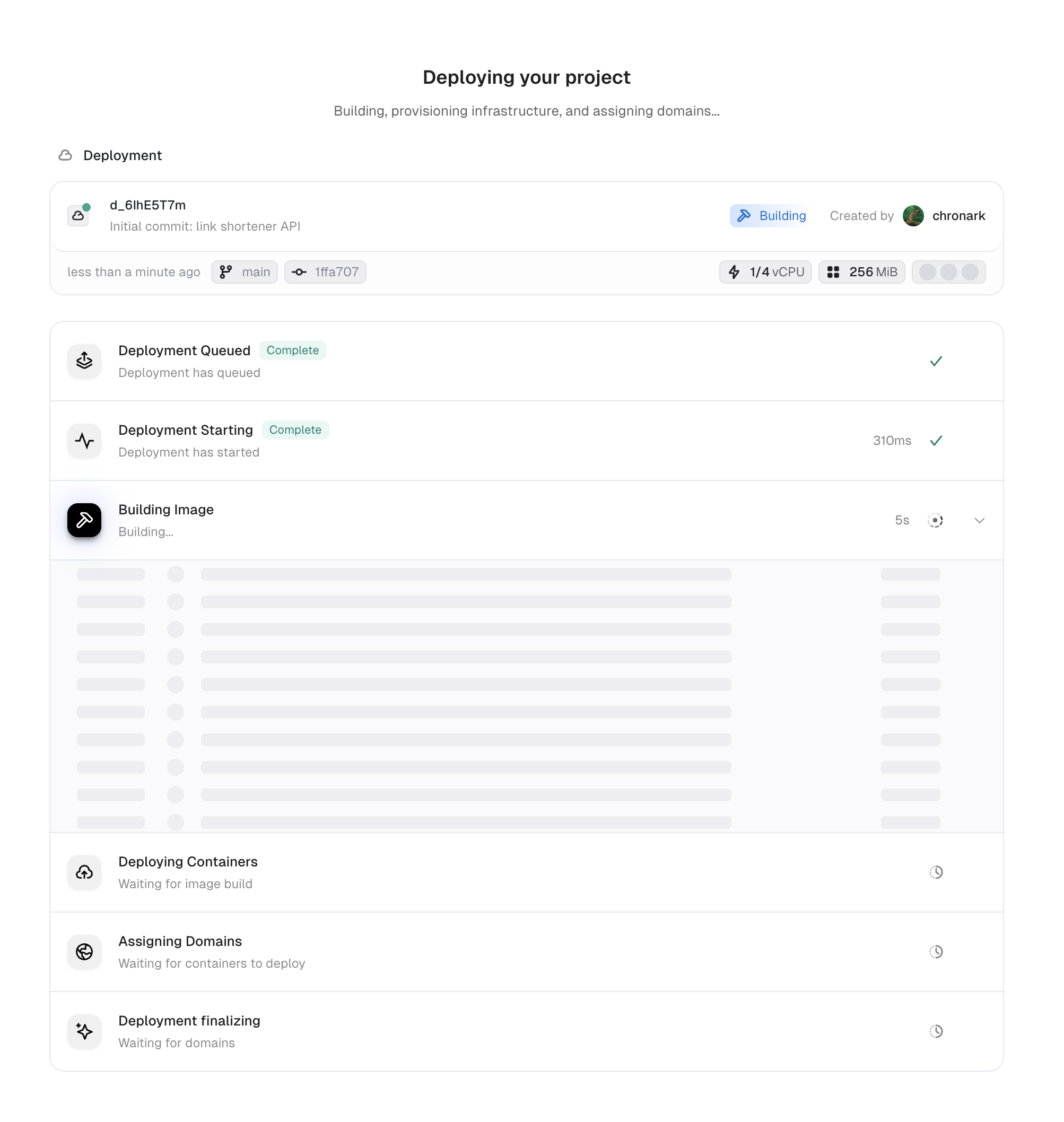
Event received
Unkey receives a trigger: a GitHub webhook from a push, a CLI
unkey deploy command, or a manual deployment from the dashboard. The deployment record is created with status Pending.Queued
The deployment enters the build queue. Unkey checks if a build slot is available for your workspace (see Build concurrency below); if all slots are busy the deployment waits here until capacity frees up. Production pushes always get a slot immediately, they never wait behind preview builds. If you deployed a pre-built image via the CLI, this step is skipped.
Building image
Unkey fetches your source code from GitHub (using the commit SHA from the push) and runs
docker build with your Dockerfile on remote build infrastructure. Build logs stream to the Deployments tab in real time.If the build fails (missing dependencies, Dockerfile errors), the deployment moves to Failed and stops here.Deploying containers
The built image is scheduled across your configured regions. Unkey creates the requested number of instances in each region and waits for them to start.If you configured a health check, Unkey sends requests to your health endpoint and waits for healthy responses before proceeding.
Assigning domains
Unkey generates domains for the deployment:
- Commit domain: a permanent URL tied to this specific commit
- Branch domain: points to the latest deployment from this branch
- Environment domain: points to the latest deployment in this environment
- Live domain (production only): points to the current live deployment
Finalizing
Routes are configured and traffic begins flowing to the new deployment. The deployment status moves to Ready.The previous deployment stays running as part of instant rollbacks, giving you a window to roll back instantly if needed.
Instant rollbacks
When a new production deployment goes live, the previous deployment isn’t torn down immediately. It stays running so you can roll back instantly if something goes wrong. No rebuild, no container startup, just an immediate domain reassignment back to the known-good version. The previous deployment stays running for 30 minutes after a new version takes over. During this window, Unkey reassigns the domains and traffic switches over in seconds. Since the previous deployment is no longer receiving traffic, it will scale down according to your autoscaling rules to the configured minimum. After 30 minutes, the previous deployment spins down entirely. Rolling back to it is still possible after that, but takes longer because the containers need to start up again.Preview idle scaling
Preview deployments stay running as long as they receive traffic. A preview deployment only spins down after six consecutive hours with zero requests. This keeps costs low for branches that are no longer being actively reviewed.Build concurrency
Each workspace has a maximum number of deployments that can build at the same time (max_concurrent_builds, defaults to 1). When the workspace is at capacity, new deployments queue in the Pending state until a running build finishes.
Production gets priority, not a free pass. Production pushes count against max_concurrent_builds like any other build, but they jump to the head of the queue: a hot-fix won’t wait behind a backlog of preview builds, but it also won’t blow past your concurrency quota.
Multiple deployments within the same environment can build in parallel, there is no per-environment serialization on the build path. The only serialization gate is the workspace-wide quota.
Superseded deployments
If you push multiple commits to the same branch in quick succession, Unkey cancels older deployments that are still queued (haven’t acquired a build slot yet) in favour of the newest one. Once a deployment starts building, it’s committed, it will run to completion even if a newer commit lands on the same branch. This avoids the pathological case where rapid pushes keep cancelling builds and nothing ever finishes. You see this in the dashboard as Superseded, the deployment shows how far it got (it usually didn’t get past the queued step) and why it stopped (“A newer commit on this branch replaced this deployment”). This is the default behaviour. Rapid pushes don’t burn build minutes on commits you’re never going to ship.Cancel a deployment
You can manually abort an in-progress deployment from its detail page, click the small Cancel deployment button next to the page title. The cancellation stops the active build or deploy step immediately, marks the deployment as cancelled, and frees the build slot so the next queued deployment can start. Cancel is available while the deployment is still in any non-terminal state (pending, starting, building, deploying, network, finalizing, awaiting approval). Once a deployment is ready, failed, or already cancelled, the button disappears.Troubleshoot failed deployments
When a deployment fails, check the build and runtime logs in the Deployments tab. Common causes:- Dockerfile syntax errors or missing dependencies during the build step
- Application crash on startup (check the runtime logs)
- Health check failures if your app doesn’t respond on the configured port
Next steps
Rollbacks & promotions
Revert to a previous deployment or promote a specific version
Builds
How Unkey builds your container images